


[Community FAQ] Relationship Map
Earlier this month we shared a Member Featured Article on Relationship Map after releasing this new feature just two months ago. If you haven’t used it, Relationship Map helps you to visualize the company dynamics, store data on your key accounts and share important information with your colleagues that can lead to close more deals by identifying account gaps and opportunities to influence the people who matter the most to your deals. Since it gives home to your multi-threading efforts and it will quickly become a strong activity of your daily selling habits we would like to answer some of the most common questions that come up using Relationship map. If you don’t find the answer you’re looking for, feel free to add your question in a comment.
1, Is Relationship Map available for all users?
Yes, you can leverage this feature regardless of your license type as it’s available for all users. However, it’s important to note, that actions, that are in connection with CRM Sync, only available for you if you’re an Advanced Plus license holder. To access it, your Sales Navigator admin has to enable enable bulk actions from the Admin Settings page for creating and updating contacts and creating and updating leads. Once it;’s enabled, you can simply click on ‘Update CRM’:

2, What are the fields that I can add in Relationship Map to my leads?
You can add four fields under the List view, and two under the Map view:
- their manager (you can also add this in Map view)
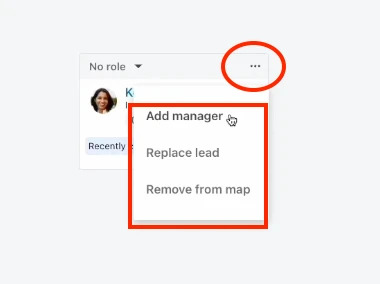
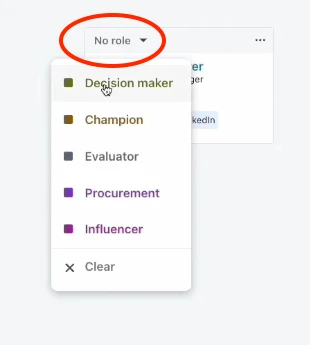
- their role in the buying circle such as Decision maker, Champion, Evaluator, Procurement and Influencer (you can also add this in Map view),
- the strength of the relationship and
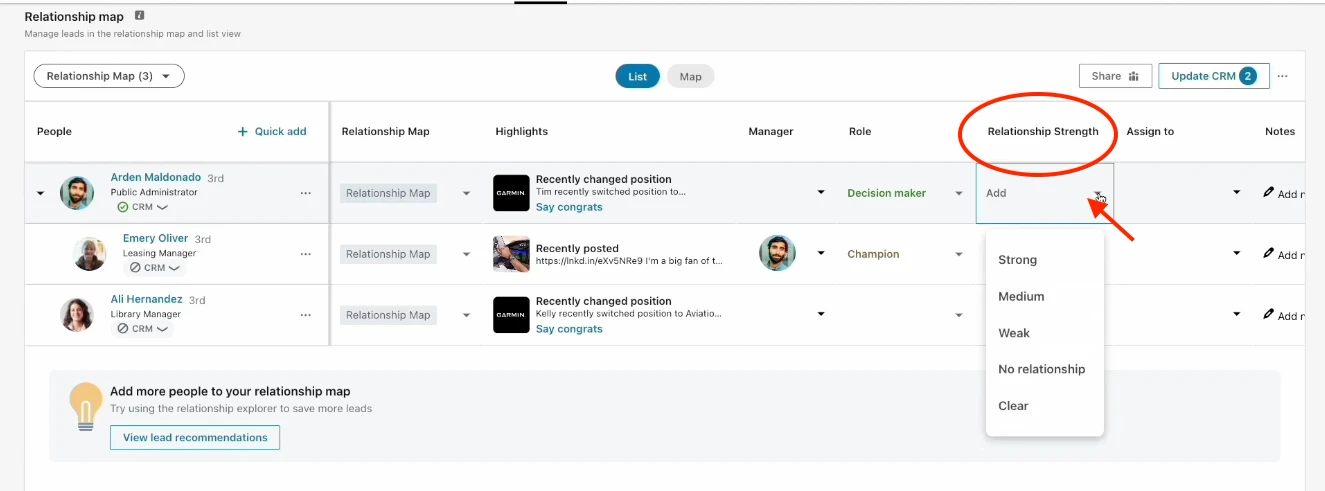
- the owner of the relationship.
3, Will the List view updated if I make changes to the Map view?
Yes, all changes are populated in both views instantly.
4, What is the suggested lead and what happens if I add them to Relationship Map?
These leads can be from your saved leads lists or unsaved leads suggested from the Relationship explorer feature. Once you add a suggested lead who was not saved before, it automatically added to your leads.
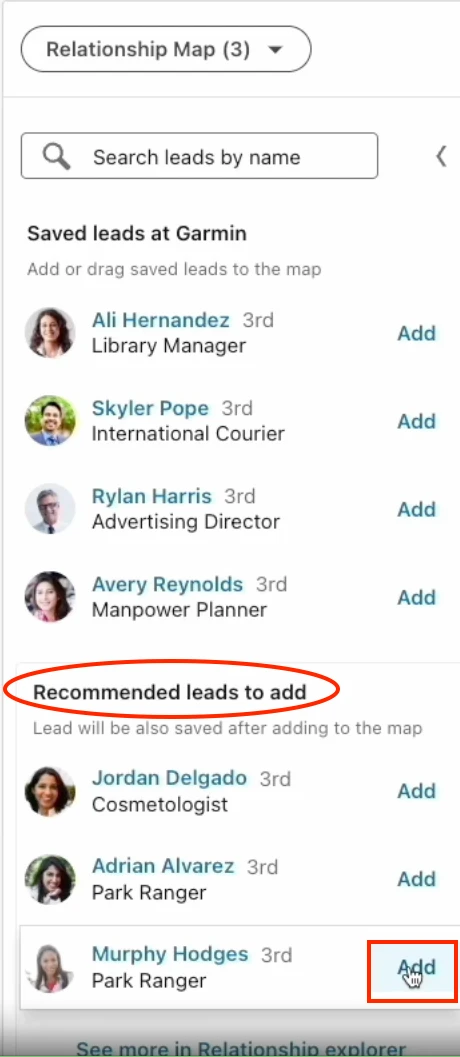
5, Are Relationship Maps pre-populated with lead suggestions?
No, Relationship Maps are manually built using saved leads and lead recommendations. The only pre-populated information is under ‘Highlights’ that describes recent activities such as 'Mentioned in the news' or ‘Recently changed position’.
6, Is there a limit for maps per account?
You can create up to five maps per account and you can add a maximum of 30 leads into each.
7. How do I know when a lead left the account?
You will see an alert that says that the map is stale or out of date and you can replace the outdated lead with another lead without disturbing the hierarchy of the map. You can find this option in the Map view.
8. Can I share the Relationship Map with my team?
Yes, you can share your Relationship Map with your team. The good news is that there is no limit to the number of people that you can share it with. Also, once you share your map with your colleagues, they can see the notes you added to each lead, that make the collaboration very efficient and transparent.
9, What happens if the owner of the Relationship Map leaves the account?
As long as a Relationship Map is shared with colleagues before the owner leaves, the ownership will be transferred to another user.
If you’d like to learn more about Relationship Map I recommend the following resources:
- Help Center article and FAQ
- Learning Center video
- Community Resources: Member Featured Article and feature announcement post.
I hope you ind this episode of the Community FAQ helpful and please share your experience and additional questions you may have in a comment below. Happy selling!