



As a Community member, one of your perks is the ability to access the Ideas page to share product feedback on Sales Navigator by suggesting new features and/or enhancements directly with the LinkedIn Sales Solutions team. If you haven’t yet tried out the Ideas feature, find out how to get the most out of it below.
Access the Ideas Feature
The Ideas page is available to all Sales Navigator Community members, meaning that anyone with a Sales Navigator license can access it. Once you’re logged into the Community, you’ll be able to find Ideas at the very top, between the “Product Updates” and “Groups”. You can access Ideas from any page in the Community by the top menu bar.

Note: If you find yourself unable to access the Ideas page, please reach out to the Community team at lss.team@communities.linkedin.com.
Search for an Existing Idea
Before you submit your product idea, it might be helpful to check if other members have also thought of the same thing. To see if a similar idea has already been submitted, type a few keywords in the search box on any page from the Homepage to the categories in the Community. If there is a similar suggestion there is an 💡 icon beside the ideas when the search results open down.
For example, if you’d like the ability to schedule InMail messages, you’ll see that there are already two ideas related to “schedule InMail.”
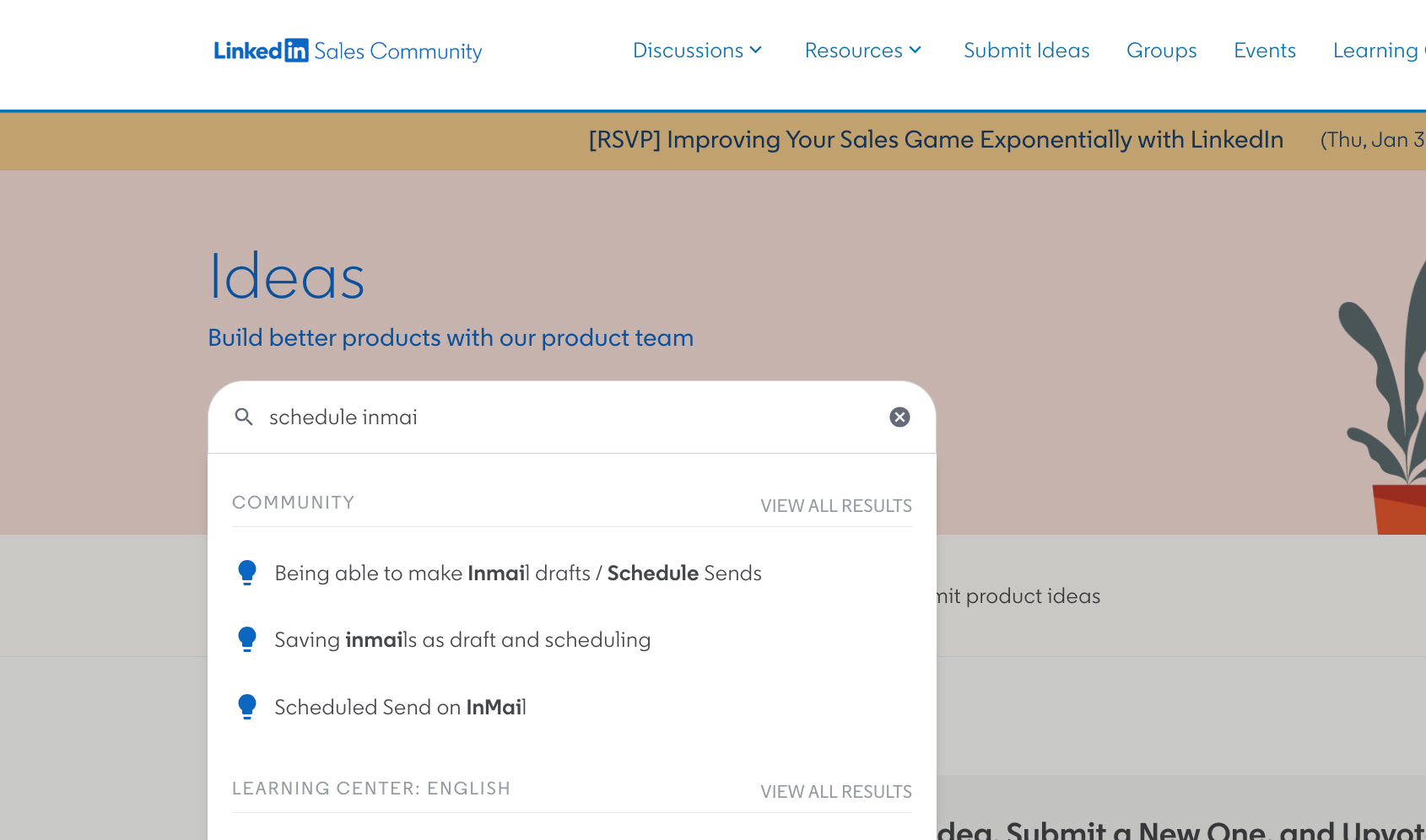
From there you can either select the idea by clicking on the title or hit “Enter” to see all search results. The platform will take you to the Search page that gives you results from Ideas, Community discussions, and articles. By selecting the content type “Ideas” you will only see the already submitted product update suggestions.
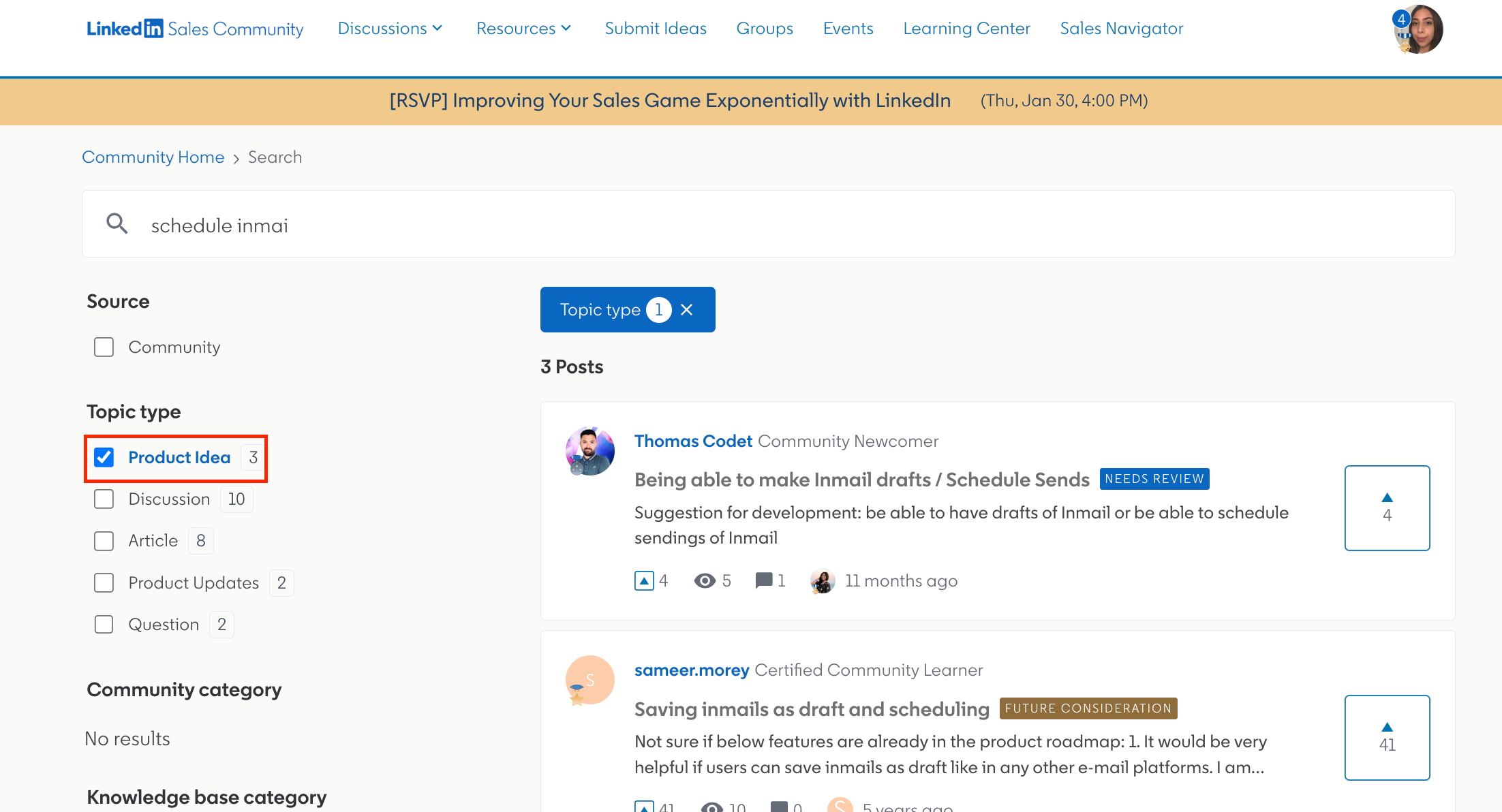
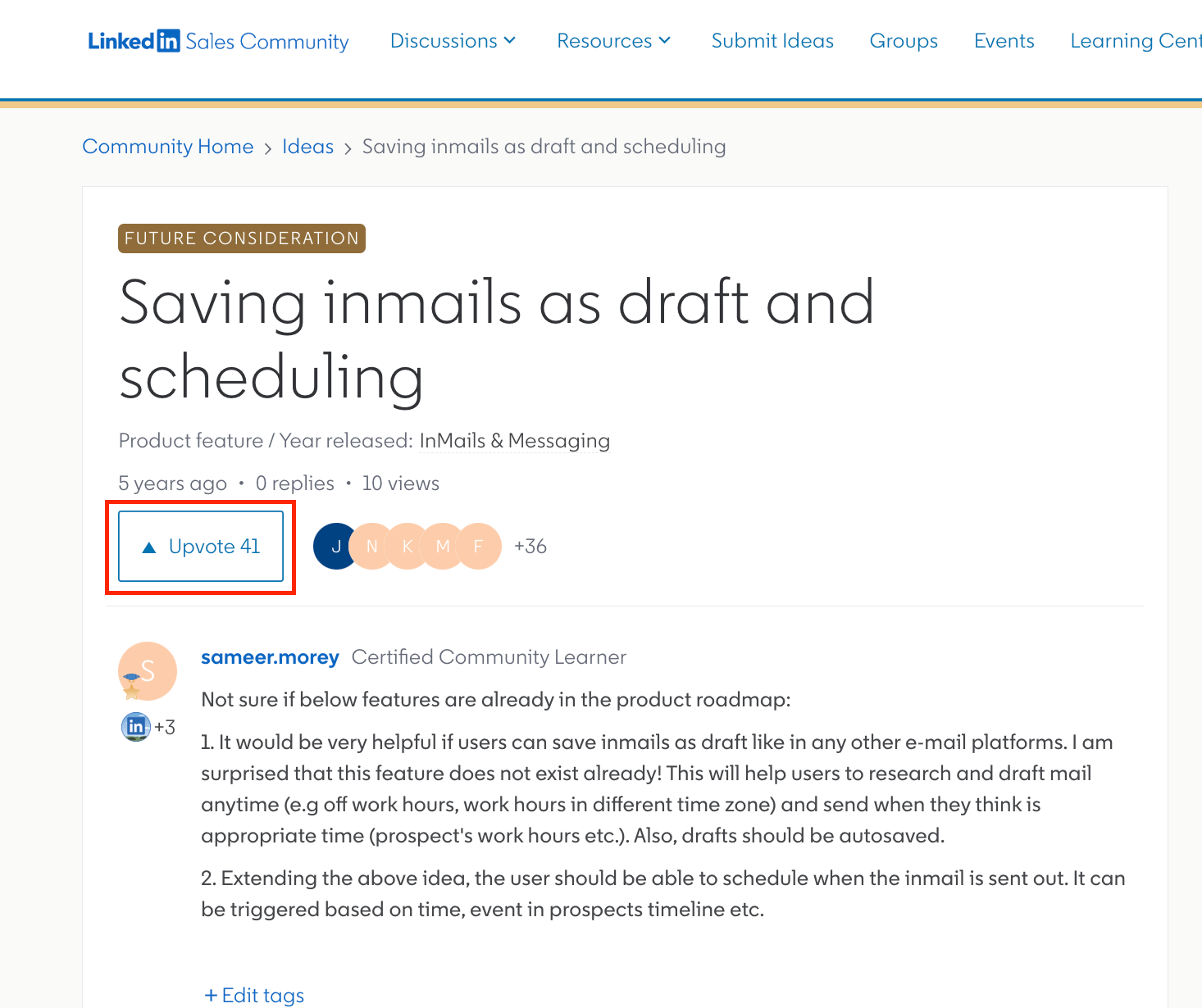
If you see any search results, click on the idea most relevant to yours. Then, on the next page, you can:
-
upvote the idea and/or
-
leave additional comments on how this idea could help you and/or your team
-
⭐ Subscribe to the idea so you always find it under your Subscriptions (by clicking on your profile avatar) and receive notifications about your peers’ feedback and status updates by your Admin.
Note: By commenting on posts and ideas you can subscribe to them and find them under your “Profile”. Please ensure that your notifications are turned on for receiving emails when there is a new reply by your peers or the Community Team. You can do so in Profile settings by selected “Yes” to “Receive email notifications from your post subscriptions”.
Submit a New Idea
If your idea hasn’t been submitted yet, we’d love to hear about it! To share your feedback with us, click on “Start a new post” on the Homepage or on the IDEA page to submit your new product feature or enhancement. You can also add a new idea by using the Search bar on any page from from the Homepage to the categories in the Community. At the bottom of the search results the option shows up to start a new post.
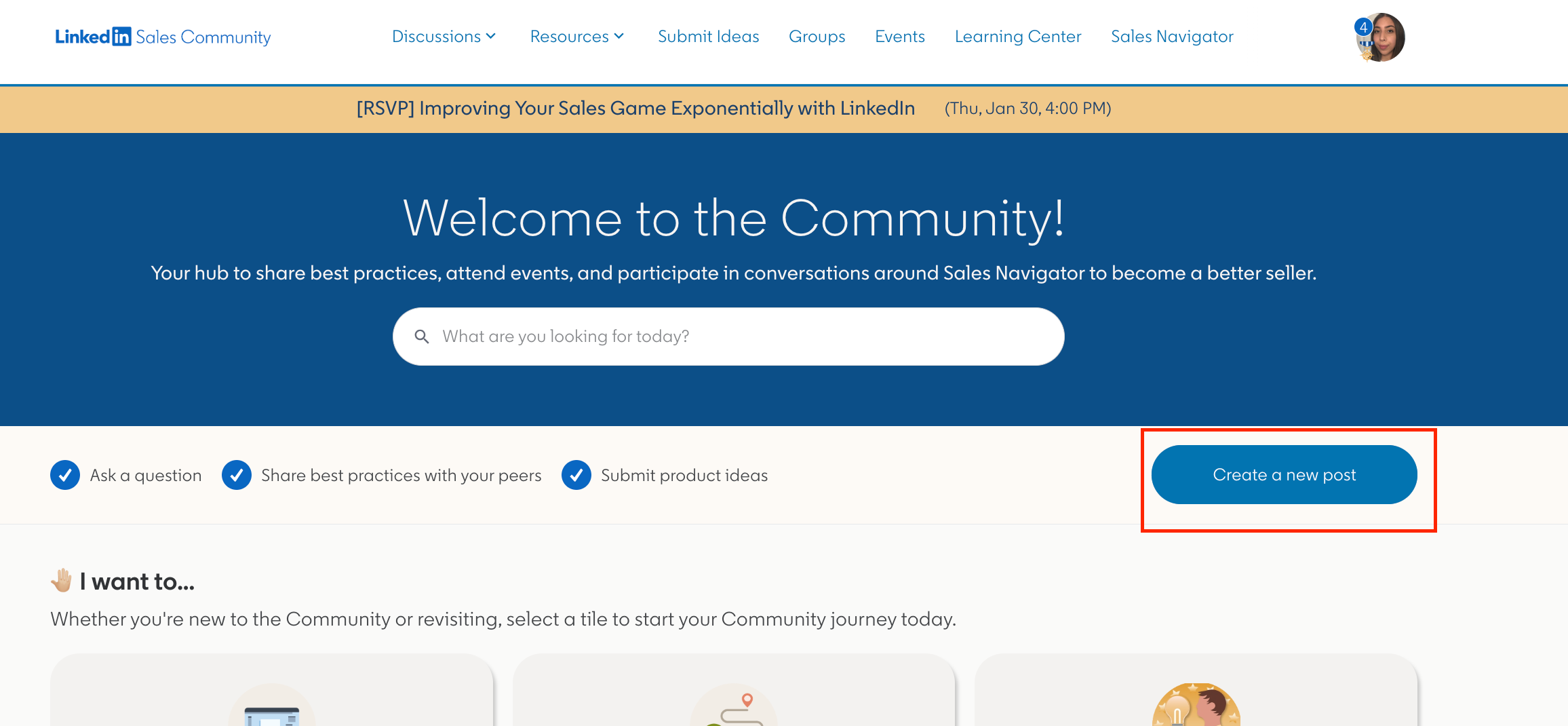
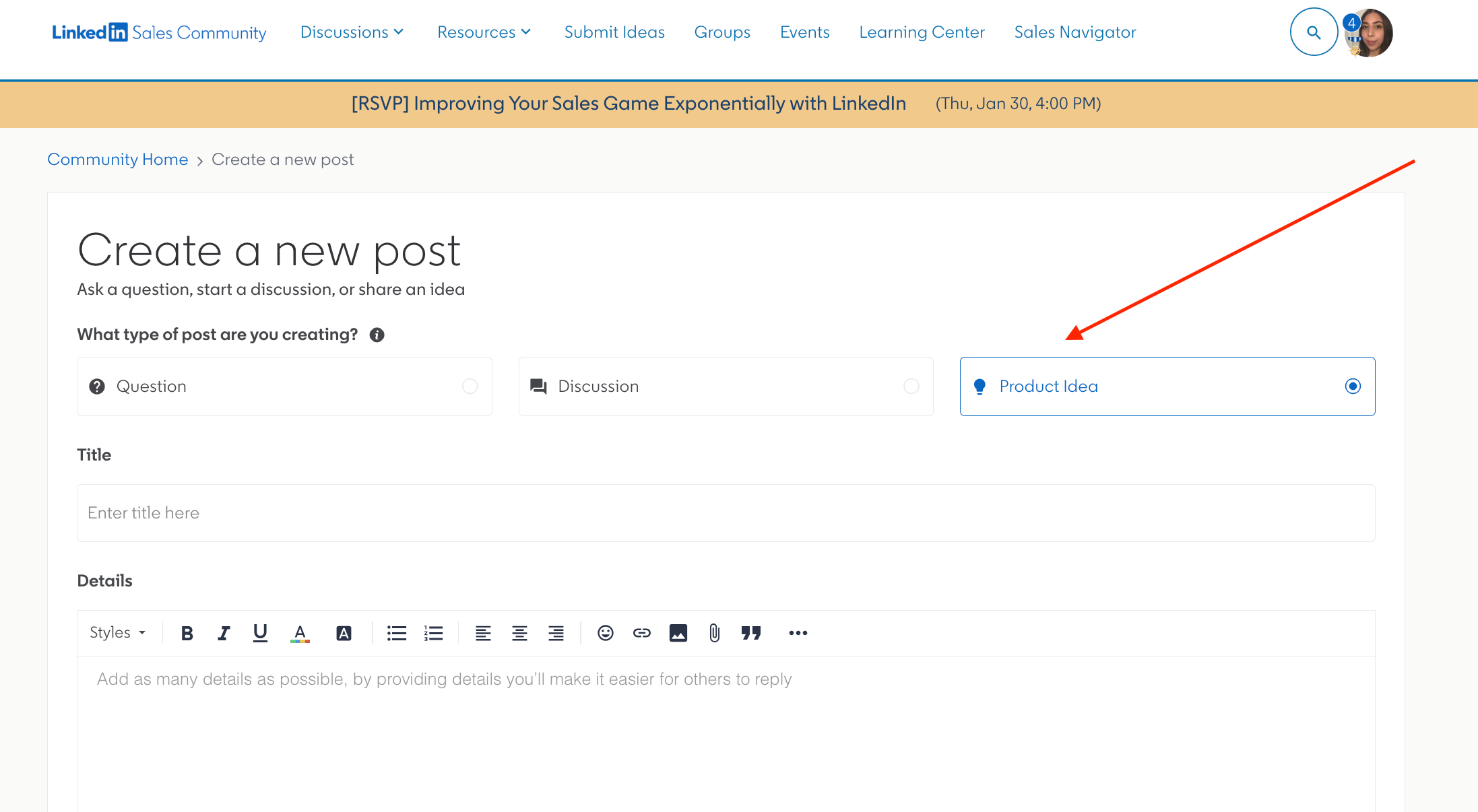
On the next page:
-
Select ‘Idea’ as the kind of post you are creating. It ensures that your suggestion will be automatically added to the ideas.
-
Add a title to your idea that describes it the most.
-
Add more details in the box below (i.e. what exactly would you like the feature or enhancement to do and how/why that would help you).
-
If applicable, attach additional files. We kindly ask you to exclude any PII (personal identifiable information) such as last name, contact info, and profile photo.
-
Select the “Product Feature” for this idea. Select ‘Other’ if you can’t find the option for your idea.
-
Add tags to promote your idea in relevant categories to get more supporters.
-
Click ‘Create.’
Filter Ideas by Status to Understand What Might be Coming Soon
On the top of the Ideas page, you may notice that we filtered the “New”, “Likely to implement”, and “Shipped” ideas so you can easily browse through the ideas that you can vote for and see the product updates that have been suggested by the Community.
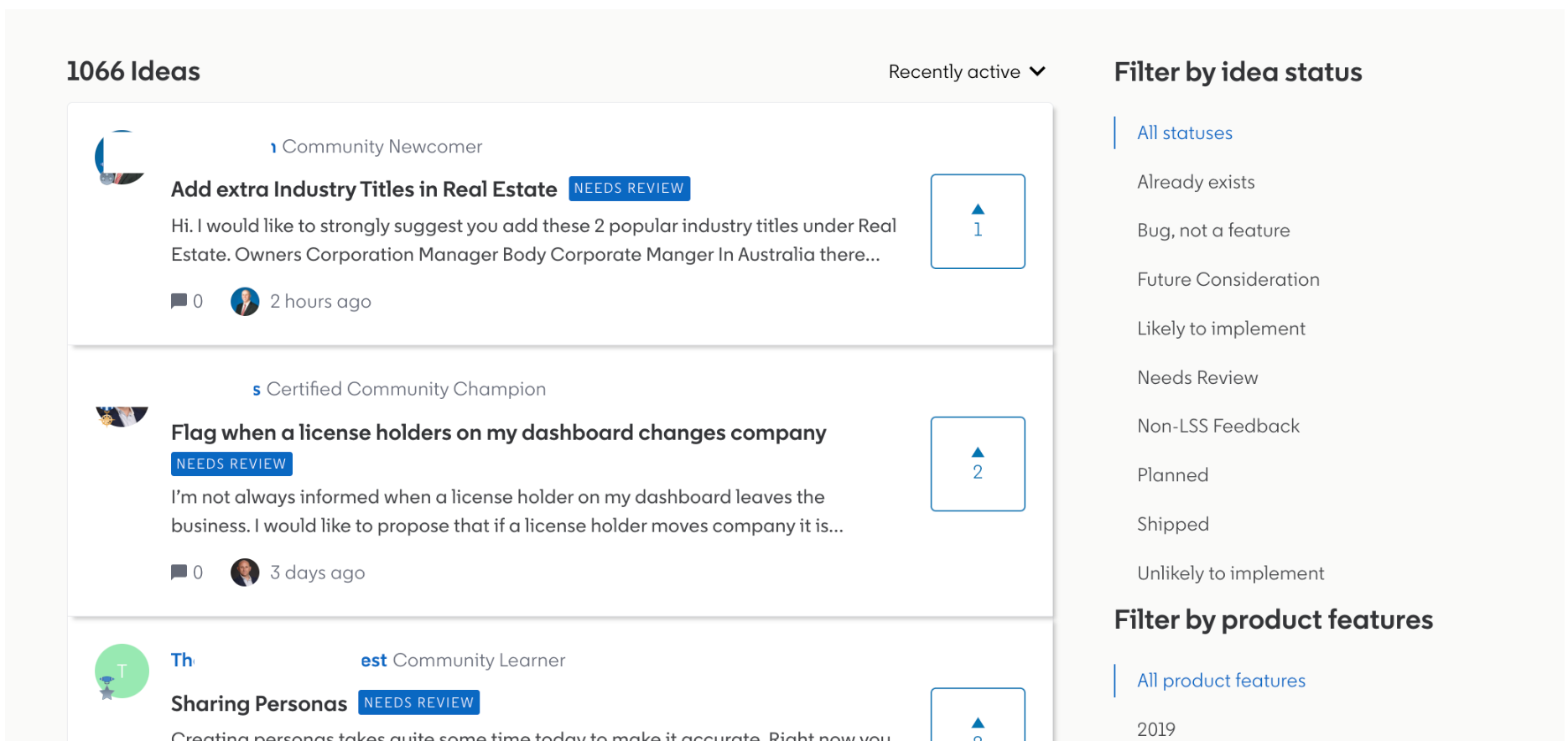
On the right side of the Ideas page, you may notice the “Filter by idea status” section. As the title suggests, this means that you can filter the submitted ideas by their status to check their progress. Here is what each of the statuses means:
-
Future Consideration: This idea is currently being reviewed by the Product team and may be considered depending on business objectives and priorities.
-
Likely to Implement: This request will be included in the product roadmap in the near future.
-
Planned: This request is planned to be included in the next 2-3 quarterly product releases.
-
In Progress: The Product team is currently working on this feature or enhancement.
-
Shipped: This feature or enhancement has been shipped and is now available in Sales Navigator (depending on your Sales Navigator license).
-
Already Exists: This feature already exists in Sales Navigator.
-
Unlikely to Implement: After review and careful consideration, the Product team has decided that this feature or enhancement will not be considered for Sales Navigator at this time.
-
Bug, not a feature: This is not considered a feature or enhancement request, as users were experiencing it due to a bug or technical issue that has now been resolved.
Check the Status and See the Admin’s Response
After submitting an idea, by the end of the quarter you will receive a status update left by the Admin in the comments. If there is any update, the Admin will share another response below.
You can find your submitted idea under “Posts” on your Profile section (by clicking on your avatar) or, if you subscribed (by leave a comment or click on the ⭐ icon) to another member’s idea, see it under your Subscriptions.
Note: By commenting on posts and ideas you can subscribe to them and find them under your “Profile”. Please ensure that your notifications are turned on for receiving emails when there is a new reply by your peers or the Community Team. You can do so in Profile settings by selected “Yes” to “Receive email notifications from your post subscriptions”.
Leverage the Category and Most Popular Filters to Browse Ideas
Under the “Filter by idea status” section, you can also view submitted ideas by product areas. Filtering by product area on the right gives you a brief view of what specific features other members may be thinking about.
We hope this article covered the Ideas feature more in-depth and walked you through all the ways you can not only share your product ideas with us but also share if you agree with what has been previously shared by your peers. If you have product feedback to share with us, we invite you to add a new idea or upvote and comment on existing ones.
