
4 Ways to Maximize Advanced Search in Sales Navigator
Hello Community members,
Sellers perform searches on Sales Navigator several times a day, even when you’re no longer doing account research or the initial prospecting for your green accounts. However, do you know the multiple ways you can perform smarter and more efficient searches than simply typing in keywords in the search bar? In today’s post, we will explore the four different ways Search (the search bar) can be utilized in Sales Navigator. But before we dive in, let’s take a look at why it is so crucial to set your Sales Preferences if you haven’t yet!
Setting Up and Changing Your Sales Preferences
Your sales preferences are essentially guidelines for Sales Navigator to know how to narrow down search results and pull the most relevant information from LinkedIn.com to you. The categories you can filter are:
- Geographies – You can now select up from within 1mi to within 100mi radius from a postal code or region.
- Industry
- Company size
- Function
- Seniority level – The “Senior” entry here means that a person has been in the workforce (not their current company) for at least 5 years.
For each category, you can select as many filters as you like – you can also leave nothing checked in a category if you wish to see a broader selection of search results. Once you’re done selecting filters in each category, simply click “Done” at the bottom of that column to save your preferences.
* Note: In case you are wondering about the limitations of the search apparatus, here are some quick guidelines regarding Searches in Sales Navigator:
- 100-mile maximum search radius from a postal code
- 2,500 maximum profiles shown per search
- Unlimited number of searches
THE FOUR METHODS TO PERFORM SEARCH
1. Advanced Search
The first more efficient way to search is Advanced Search, or search by filters. As you see in the screenshot below, there is a list of filters you can select and customize from underneath “Keywords.”
- You can select filters within each category by clicking on each category directly in the left panel (boxed in blue above) or select “Lead filters” (boxed in pink above)* to open up a pop-up panel that would show the same categories. (See screenshot below)
- When you open up the pop-up panel, you will see the toggle option to “Apply your sales preferences” (boxed in green above). This should give you another reason to set up your sales preferences and update them whenever possible, as applying your sales preferences will save you time every time you start a new filtered search.
- After your preferences have been populated into some categories (i.e. Geography, Industry, Function), you can add more specific filters to other categories (i.e. Title, Connection Relationship, Years at current company) if you wish.
- As you select more filters, the number of results shown at the top right should decrease – and you want this because this means Sales Navigator is giving you a more refined search that has been identified for your criteria rather than a general, broad search.
* Note: These screenshots show the Advanced Search for Leads, but the same thing can be performed for an Accounts. Instead of selecting “Lead filters” at the top right, select “Account filters” instead.
2. Saved Searches
Another great way to search is going through your Saved Searches. They are accessible at the top of the navigation bar (boxed in pink below), and clicking into it will let you select “Saved lead searches” or “Saved account searches” (boxed in green below).
*Pro-tip: Check out this page for a quick reminder on how to save searches. Remember that you can save searches in both Leads and Accounts and choose how frequently you want to receive alerts! You can save up to 15 searches and receive up to 15 saved alerts per week.
From any of your saved search, you can also edit the filters in different categories on the left panel. Searching from a saved search allows you to start from a previous list you built rather than from scratch to save you some time.
* Note: This is different from “Saved Custom Lists,” which we will cover in another post later this week.
3. Boolean Search
The third smarter way to searching is using Boolean logic or modifiers within the Keywords you type in the search bar. Boolean search helps you narrow down OR expand your keywords searches to find results more closely related to what you are looking for. The modifiers you can use are AND, OR, NOT, and quotes and parenthesis.
For more information on how you can use other modifiers (AND, OR, NOT) in your Boolean search, check out this guide here. Additionally, below are visuals on what each modifier means in Boolean search/logic:
4. Search Exclusions
Lastly, we have the Search Exclusion feature, which came directly from the Ideas portal in Community based on many members’ feedback! This is an example that we are listening to you and will do our best to provide the best user experience, so keep those ideas coming. 😊
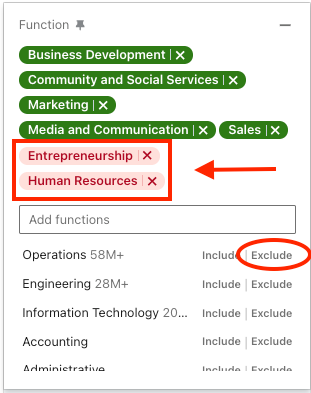
Search exclusion is an additional layer of selectivity in your Advanced Search (search by filters) page. This unique function allows you to include specific filters as well as to exclude specific ones you don’t want. The selected filters are shown as blue bubbles as usual, while excluded ones are shown as red bubbles. The seven categories that support search exclusion are:
- Company – Leads only
- Geography – both Leads and Accounts
- Seniority level – Leads only
- Title – Leads only
- Function – Leads only
- Industry – both Leads and Accounts
- School – Leads only
To exclude a filter, all you need to do is hover over one in one of the seven supported categories and click the “block” icon (boxed in red below). After you exclude it, it should show up in red bubbles below (i.e. Entrepreneurship and Human Resources).
Final Thoughts
That wraps up the four different ways you can perform smarter and faster searches in Sales Navigator! I would like to know if there’s a certain method you utilize the most to search or which you’ve found to be most useful. What are some of your best practices around each method and are there any tips you can share with other members of the Community?
Happy searching, and I look forward to hearing your feedback!
Eva C.